Status
New Here?
 Fast! Three Questions.
Already a member?
|
 |
| Sizing Images for Display on FanArtReview.com |
|
The purpose of this brief walk-though is to give you step-by-step instructions on resizing your images for proper display on FanArtReview.com. The screens shown are from Irfanview. To download a free copy of Irfanview click here. After installing, open Irfanview and follow the instructions below. If using Photoshop please click here for instructions.
|
First, open your image. Go to the "File" menu item and choose "Open".
|
|
Bring up the resize dialogue by choosing "Image" and "Resize/Resample" from the menu.
|
|
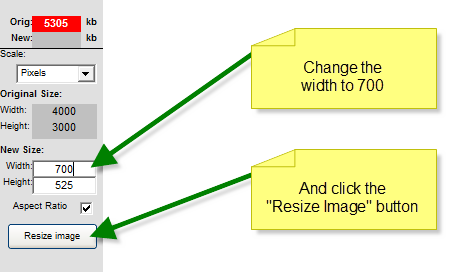
Change the Width to 800 or smaller (recommended size is 700). The height will change automatically but can be adjusted if necessary. Change the DPI to 72. Press the "OK" button to save all dialogues.
|
|
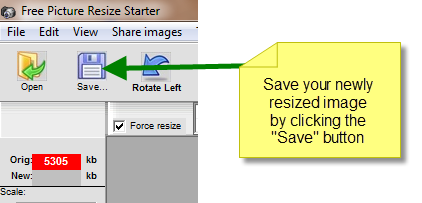
Choose the "Save As" menu item.
|
|
Be sure "JPG" is the selected save format.
|
|
If "JPG" is selected a small window will be shown with JPEG specific properties. Change the "Save quality" to 50. Save your resized image.
|
| .
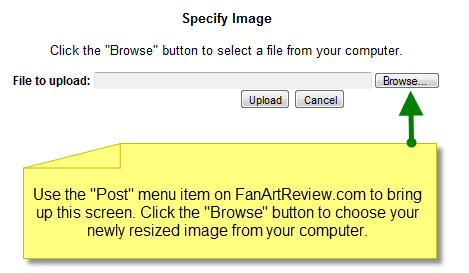
Now you are ready to upload your image to FanArtReview.com! Click here to get started and follow the online instructions.
|
|